Documentos legais
Set up automatic Focus
What this integration does
When you confirm a clock-in, a break, or a clock-out in PontoCerto, the app can turn the Work Focus on your iPhone, iPad, or Mac on or off by itself — and when turning it off, it restores whatever Focus was active before (if any).
This page walks through getting that working, from scratch to tested.
Before you start
- The Shortcuts app needs to be installed (it ships by default on iOS, iPadOS, and macOS).
- iCloud Drive needs to be on — the Shortcuts use a small file there to remember which Focus was active before.
Where to start:
- Nothing set up yet → start at Part 1.
- Already have the Work Focus, just need the Shortcuts → skip to Part 2.
- Already set everything up and it’s not working → jump to Common issues.
Part 1 — Turn on the “Work” Focus
1. Open Settings > Focus (on Mac, System Settings > Focus) and tap the Work Focus — it’s already suggested by the system, so you usually don’t need to create anything.
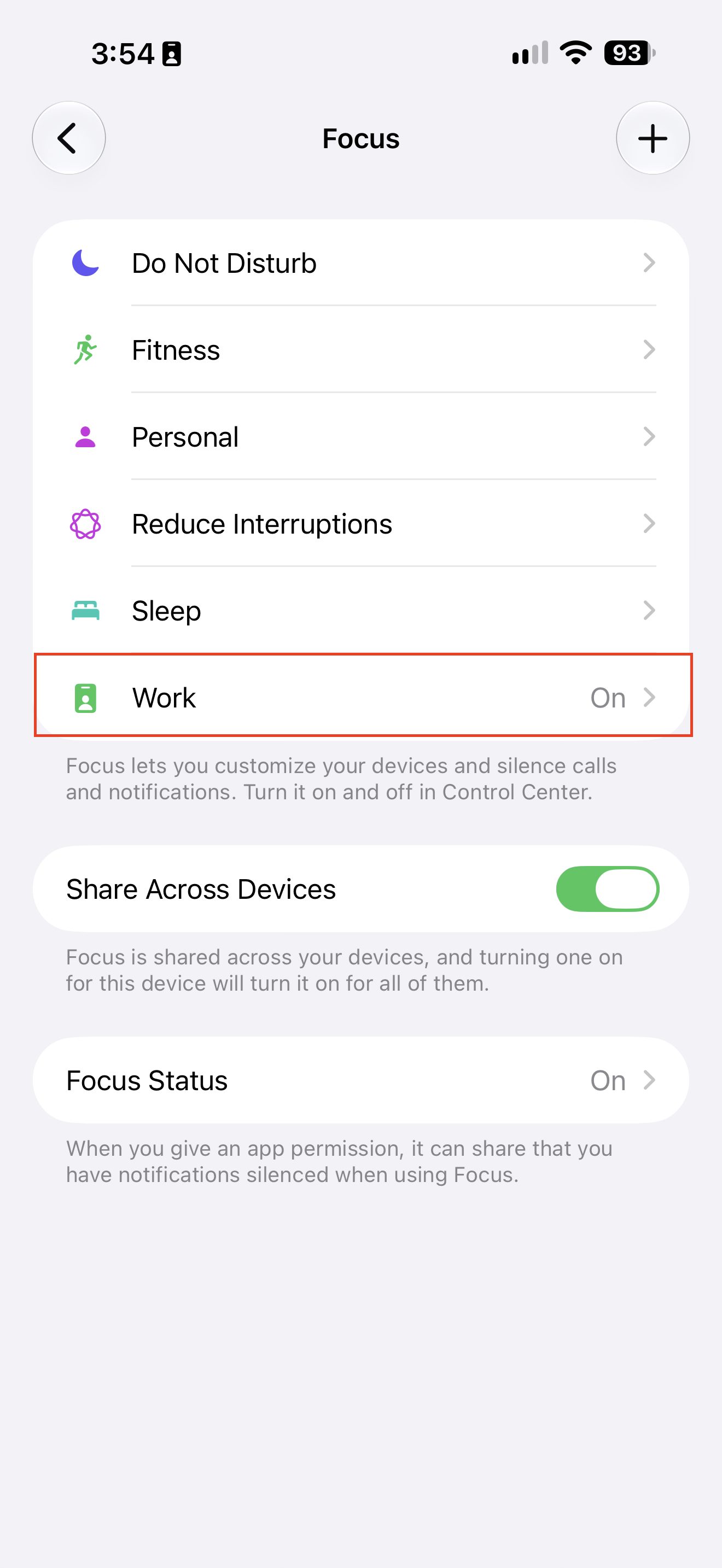
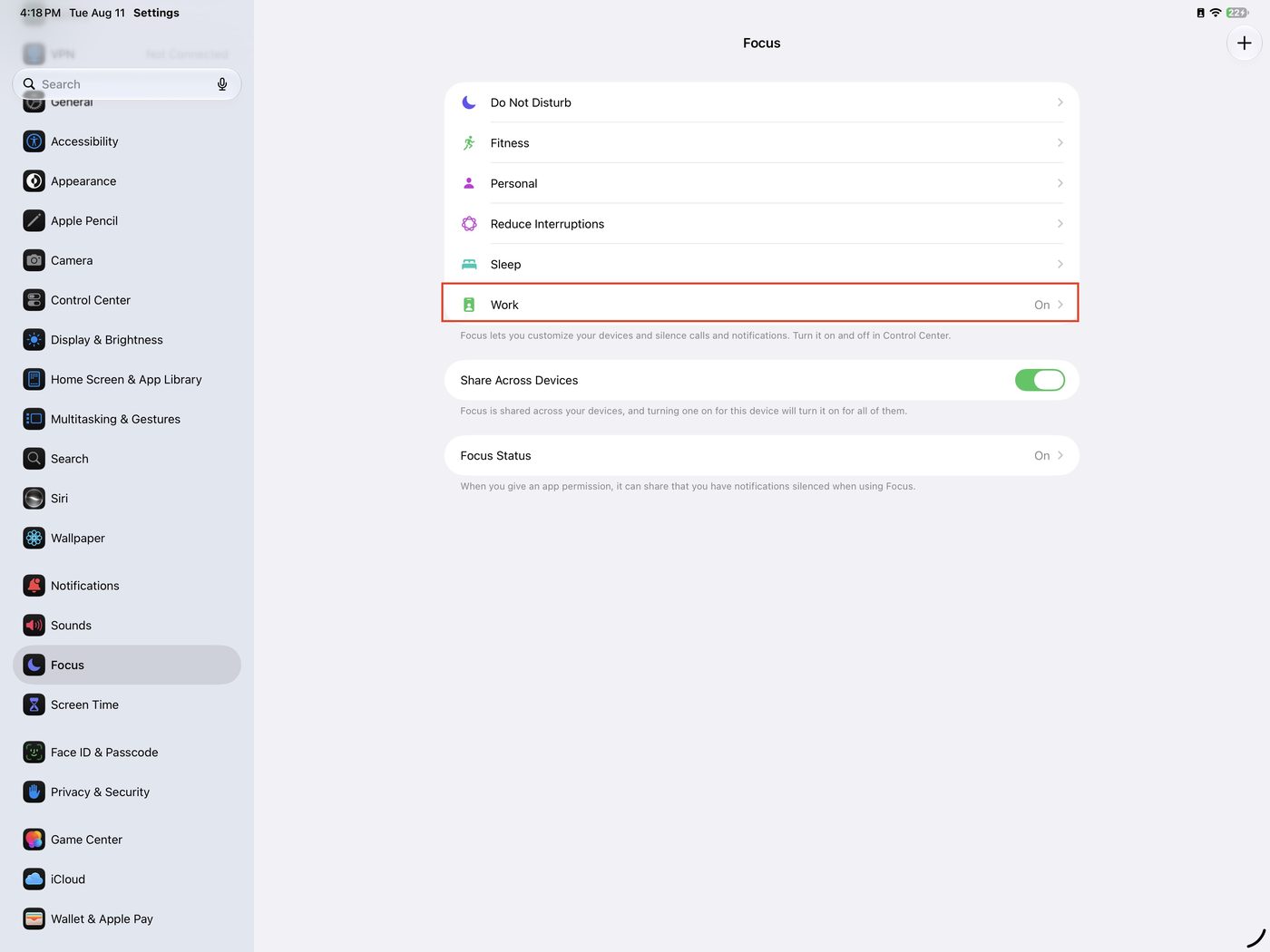
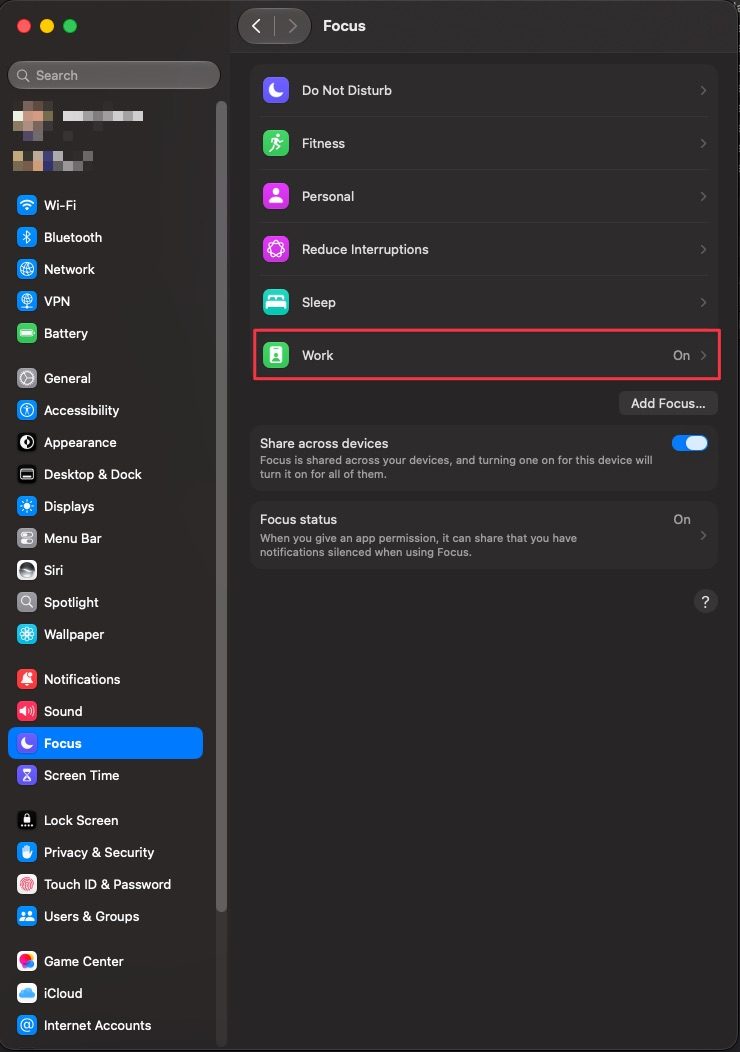
2. If Work isn’t in the list, tap the + (on Mac, the “Add Focus…” button) and pick Work from the suggestions.
Never pick “Custom”. A custom Focus gets its own identity, separate from the system’s built-in Work Focus — and the Shortcut is set up to turn on that exact system Focus. A custom Focus with the same name won’t work.
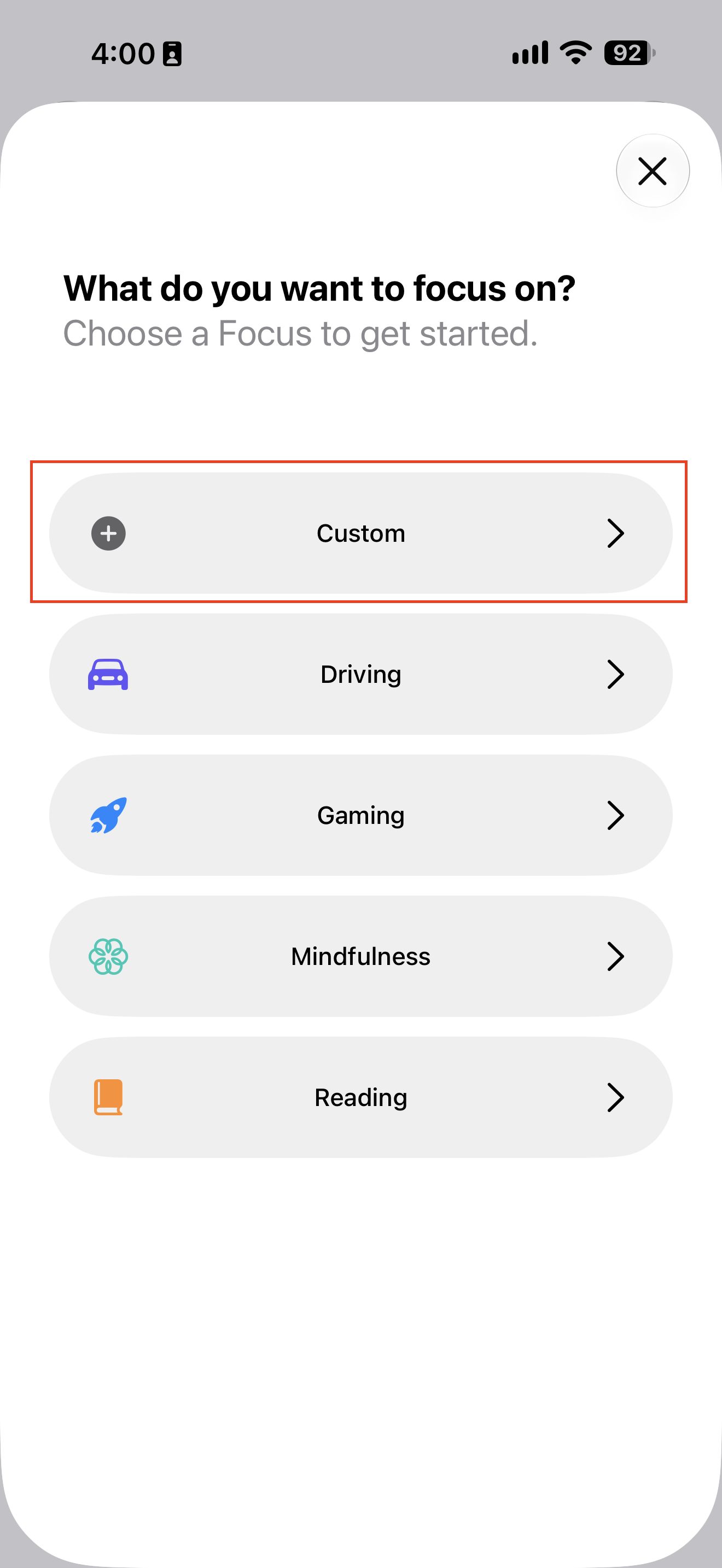
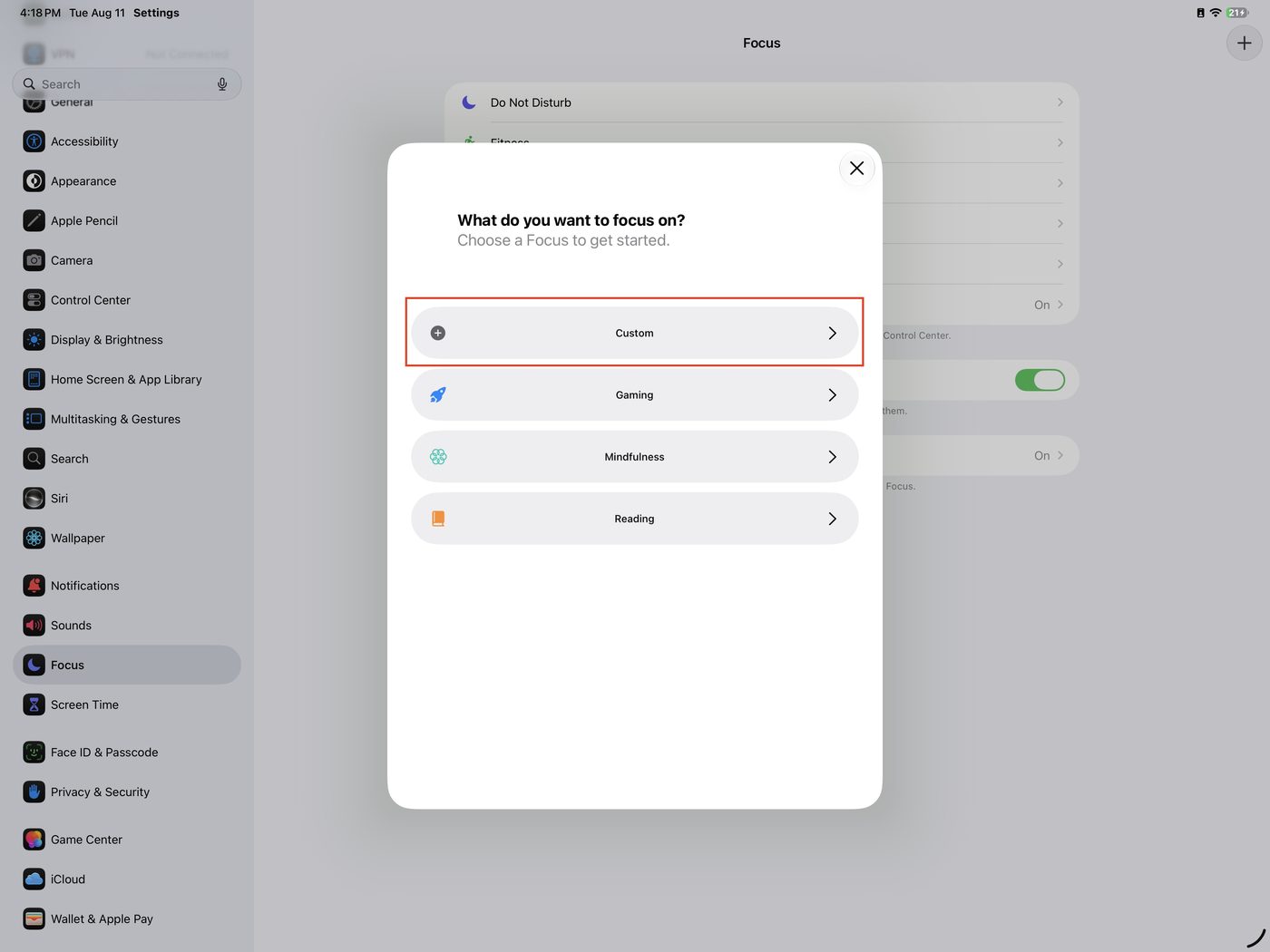
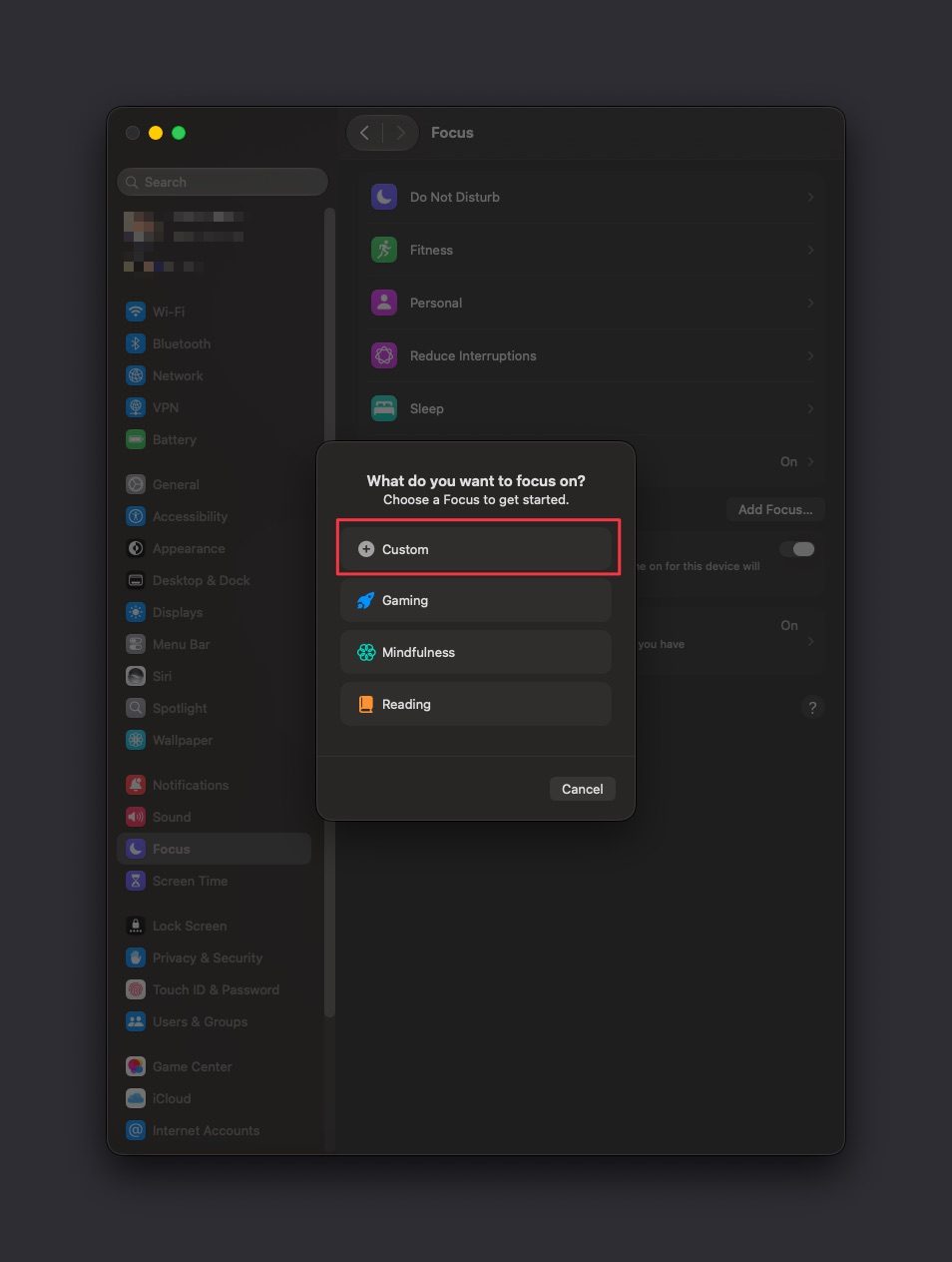
If your device is in Portuguese, this same Focus is called Trabalho — it’s the same one, the system just translates the name. No need to touch anything in the Shortcuts because of that.
Part 2 — Install the Shortcuts
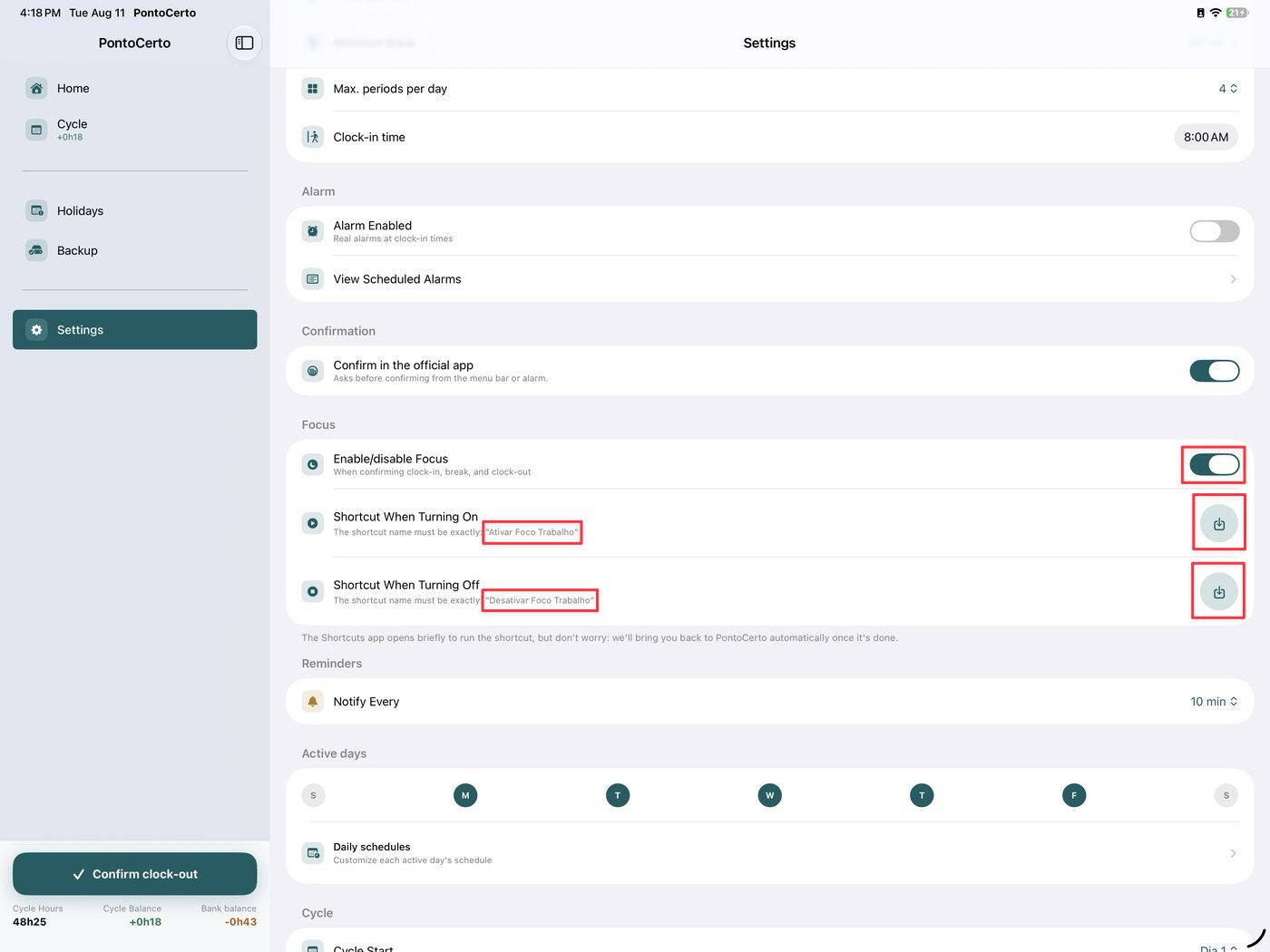
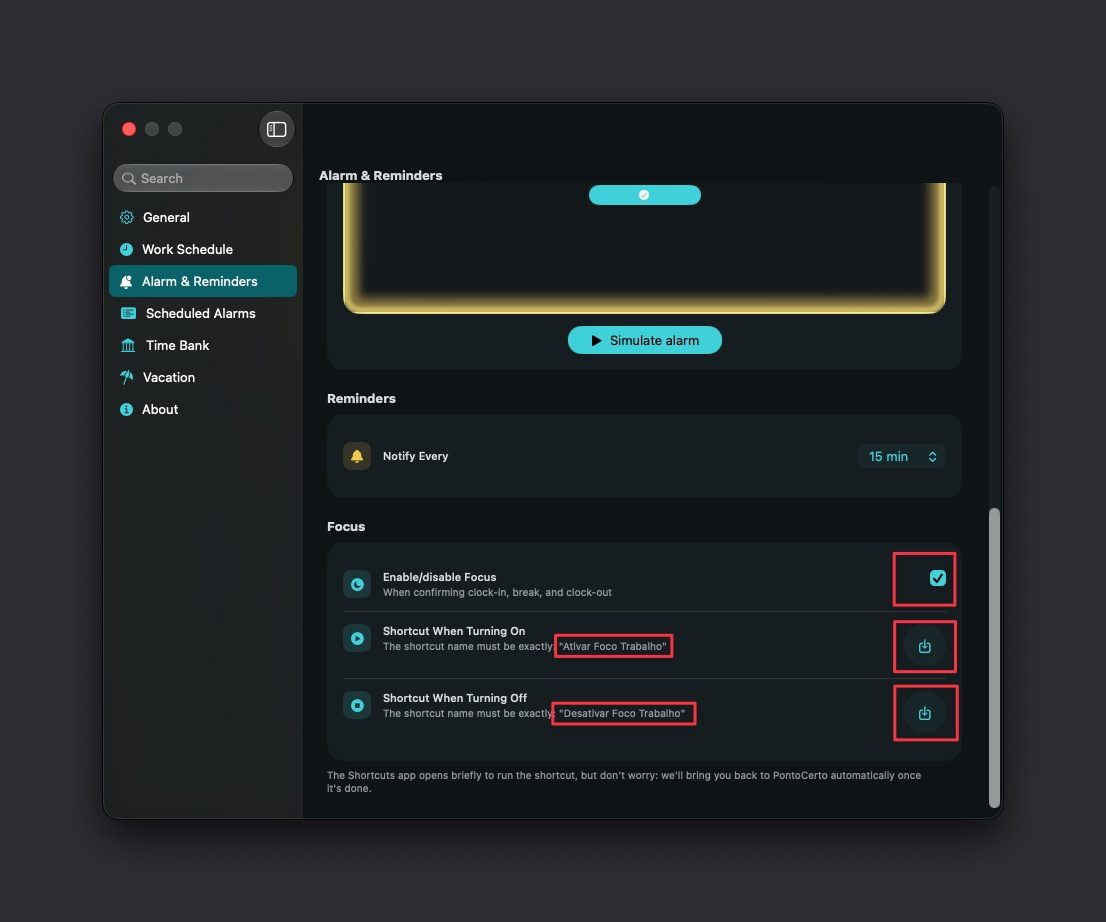
3. In PontoCerto, open Settings > Focus (on Mac: Settings > Alarm & Reminders, scroll to the Focus section). Turn on Enable/disable Focus and tap Add on both shortcuts.
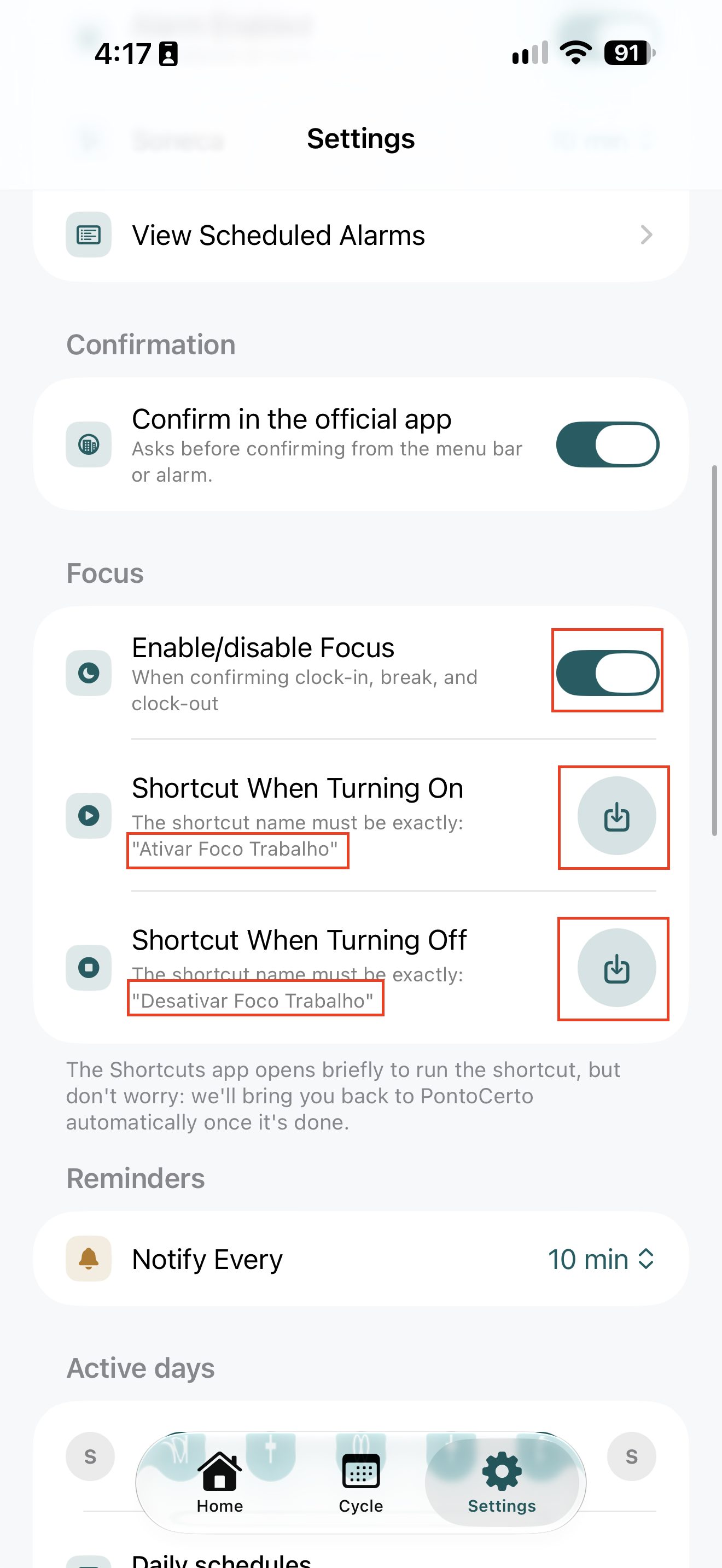
4. Confirm on the sheet that opens in the Shortcuts app.
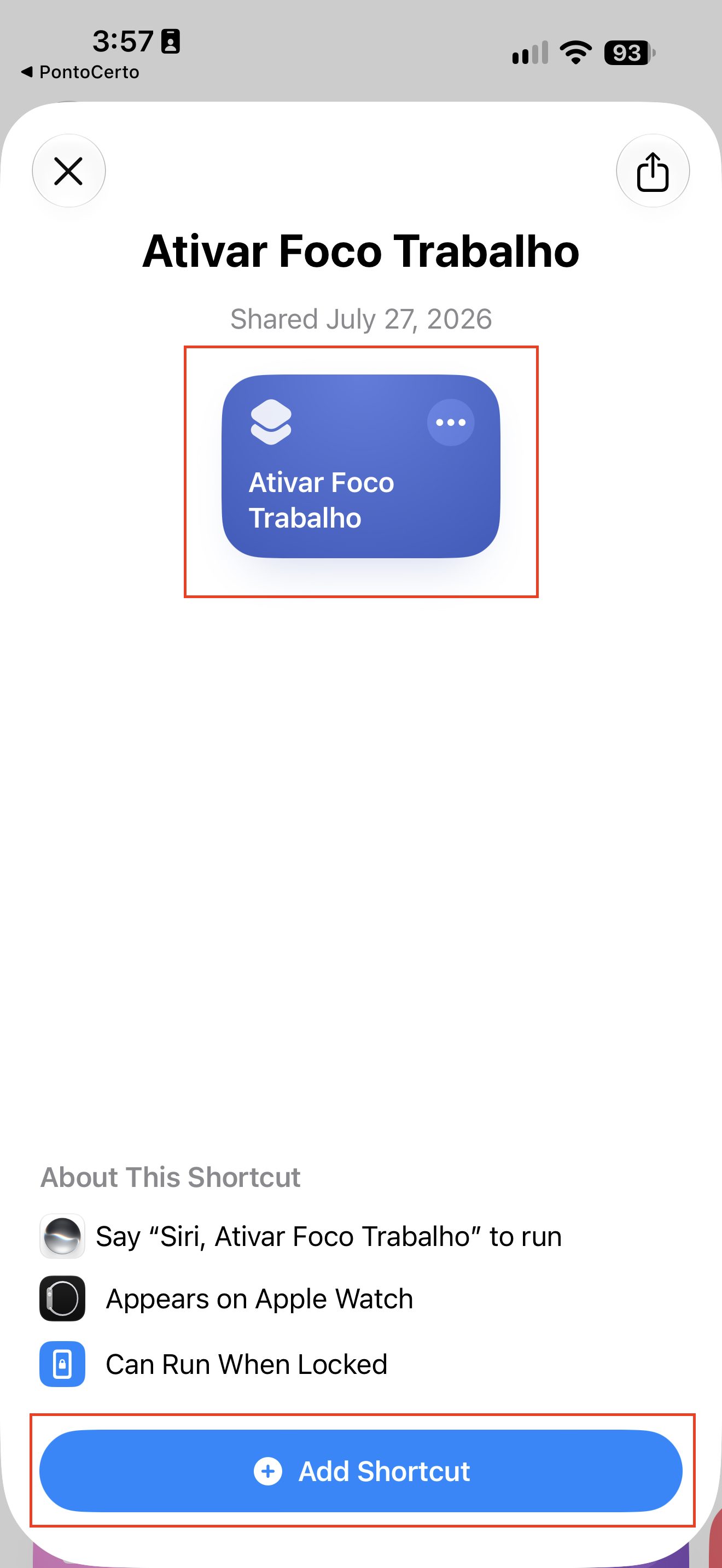
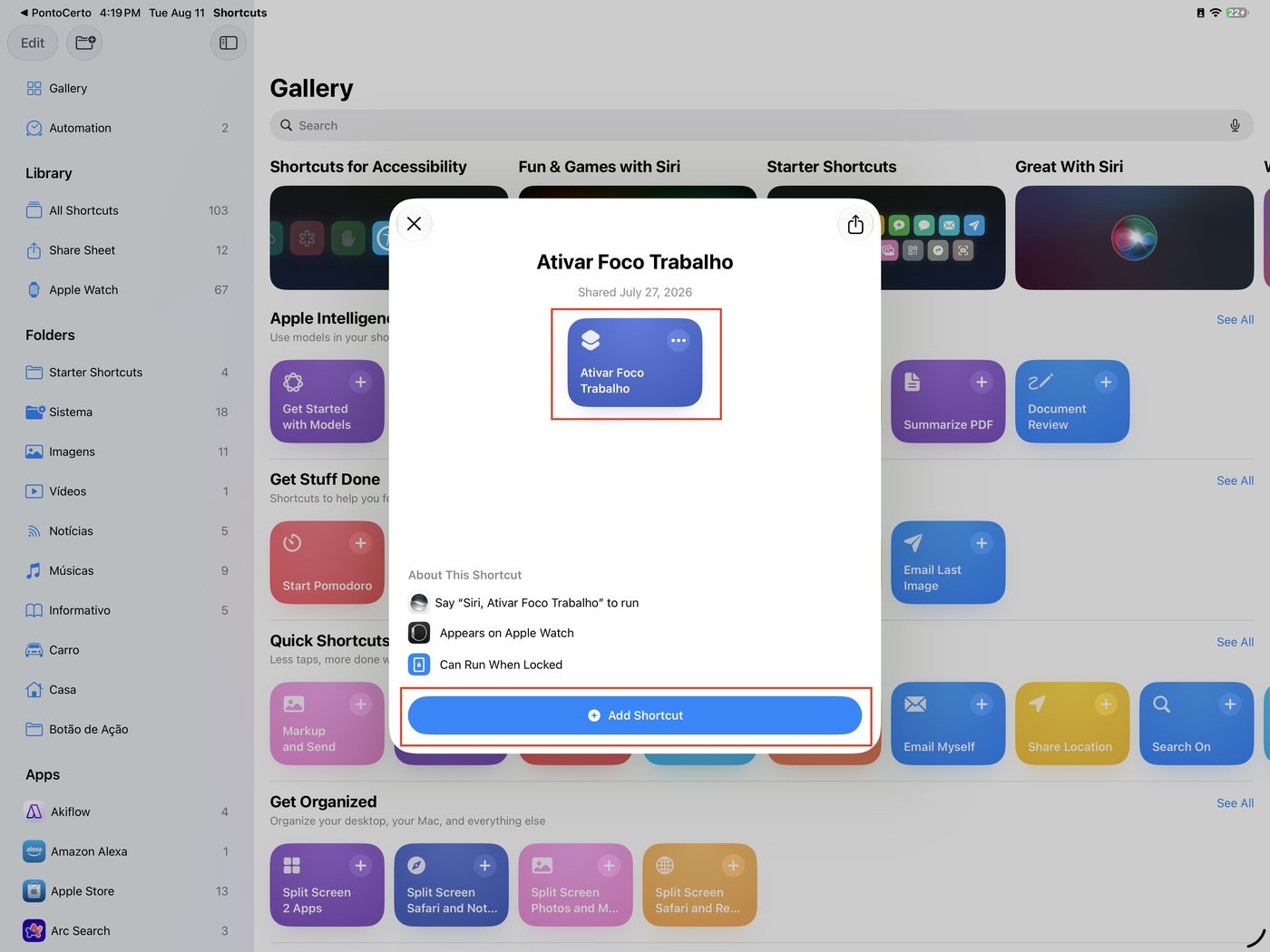
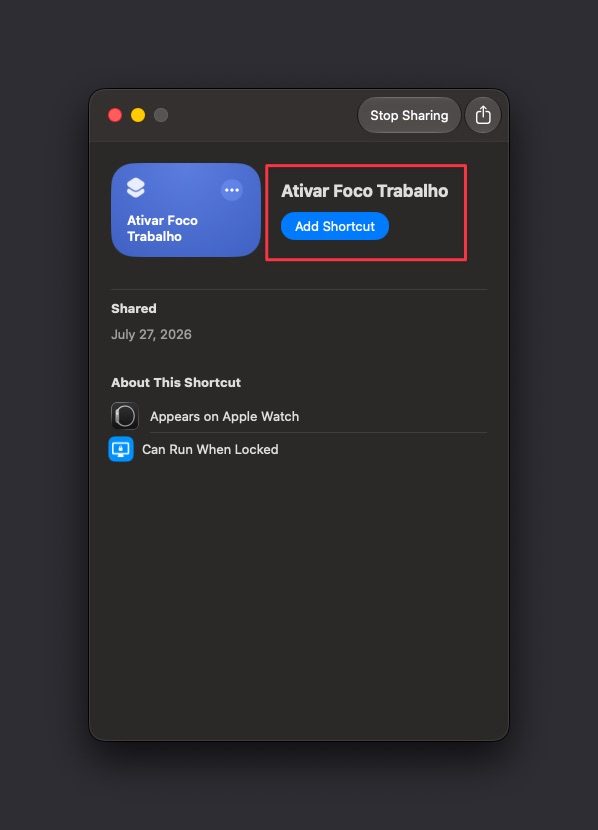
5. In Shortcuts > All Shortcuts, check that the names are exactly Ativar Foco Trabalho and Desativar Foco Trabalho. If it came in with a number at the end (like “Ativar Foco Trabalho 2”), rename it — PontoCerto needs the exact name to call the right shortcut.
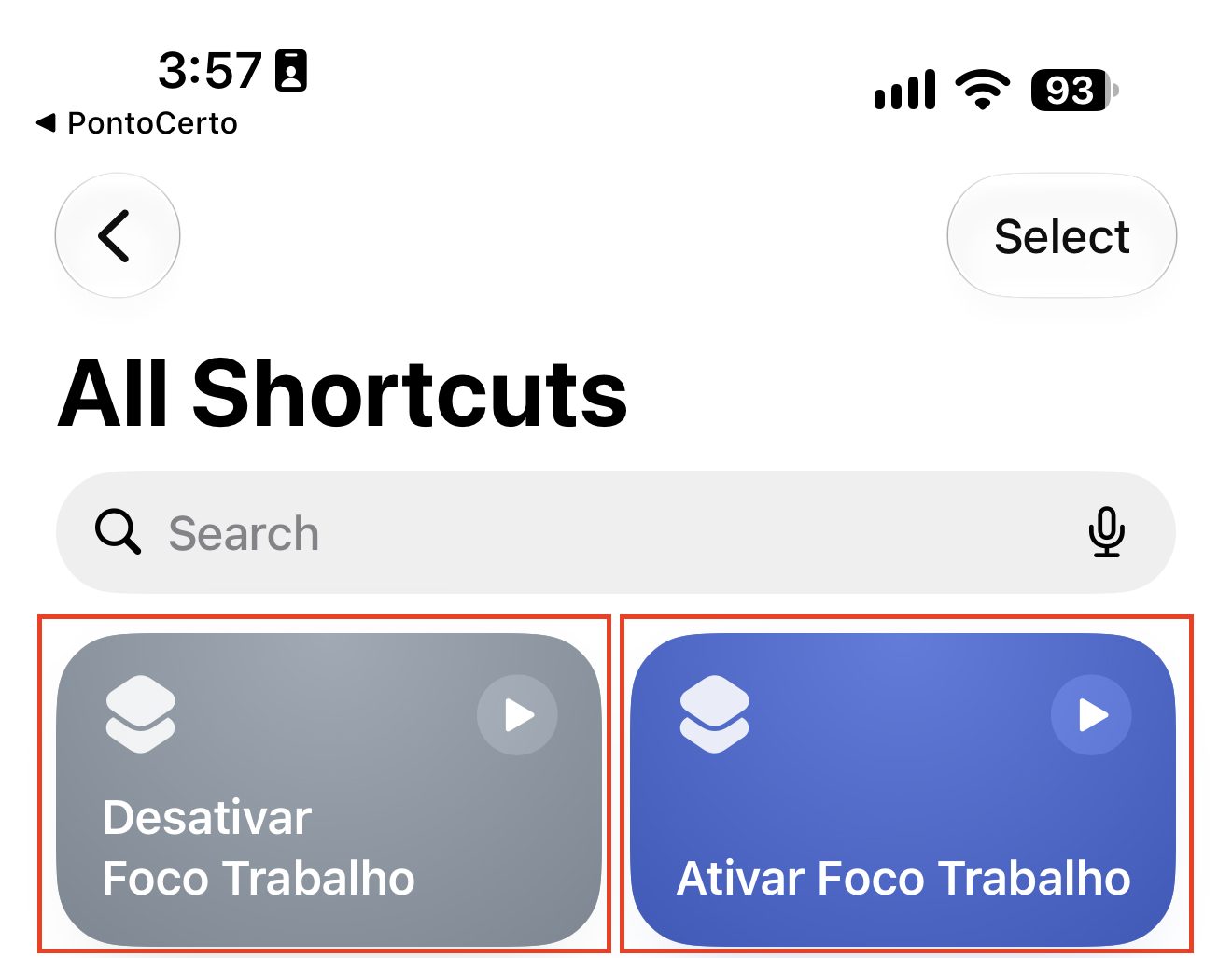
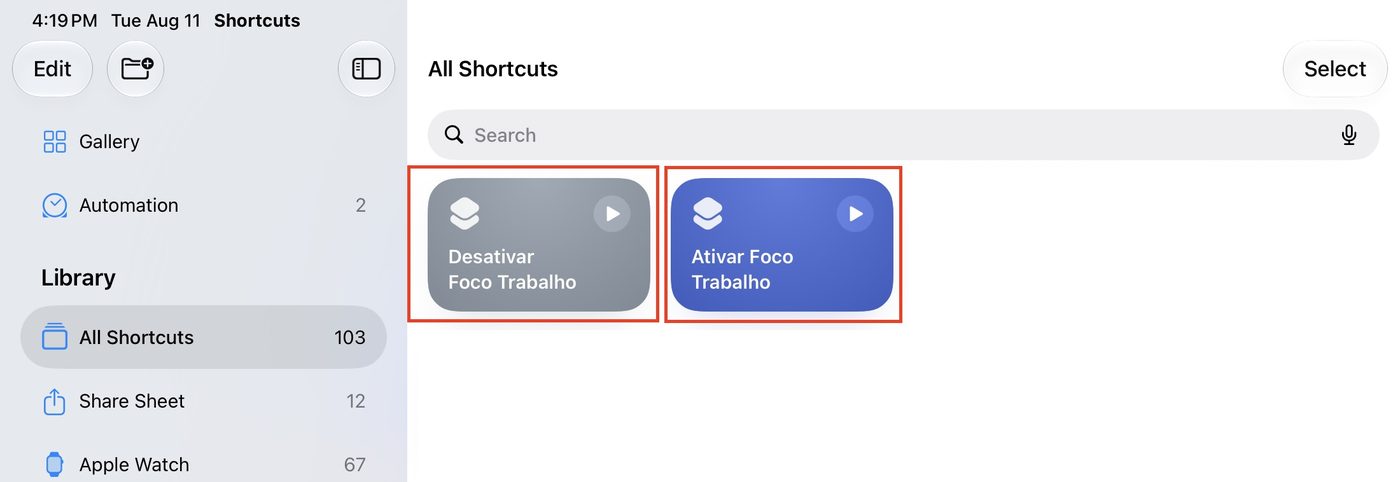
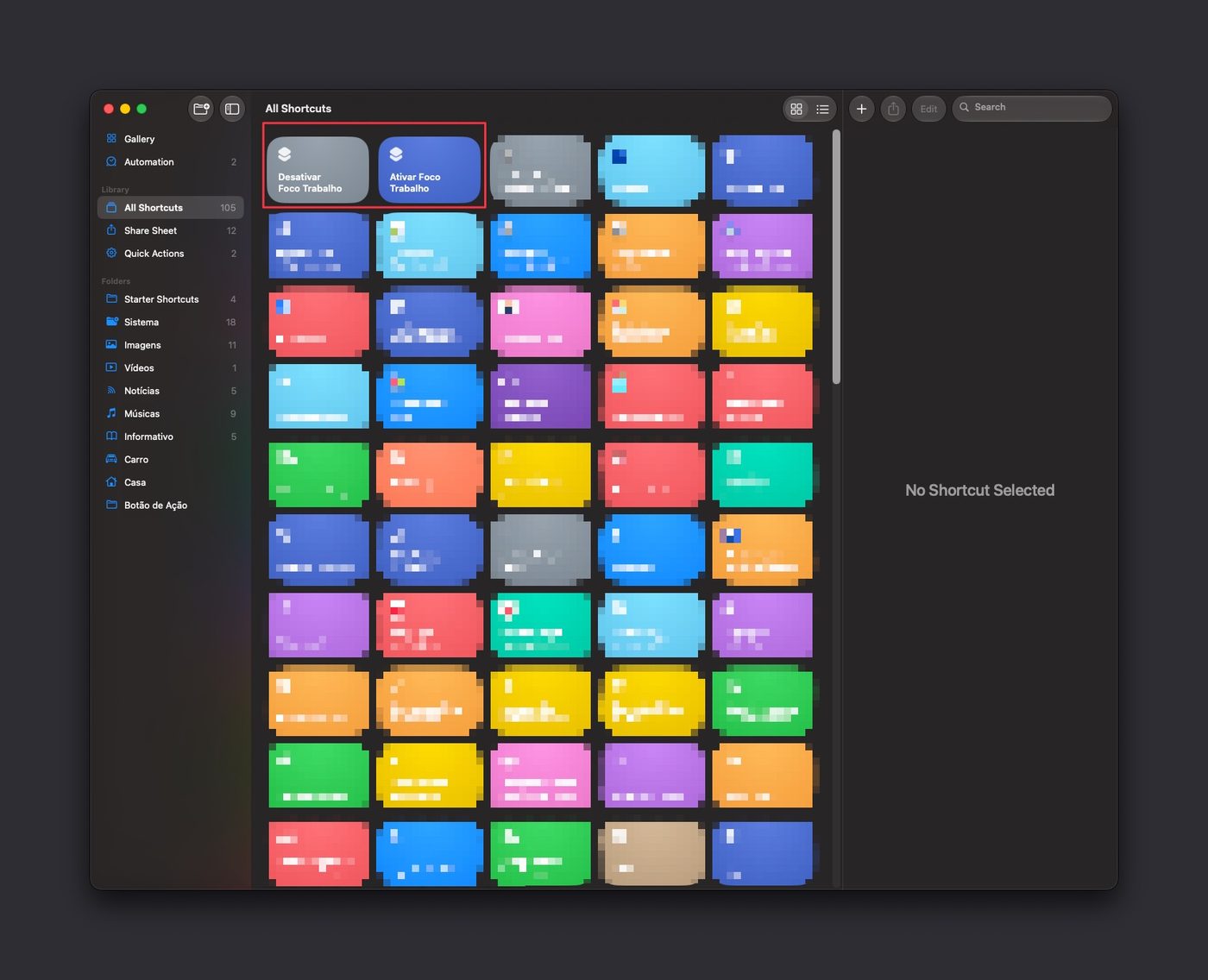
The names stay in Portuguese even with the device in English — don’t translate them.
On Mac, both shortcuts usually show up there already, synced from the iPhone — no need to import them again. If they’re not there, import them using the same buttons from step 3, now in the Mac’s Shortcuts app.
Part 3 — Check the “Set Focus” action
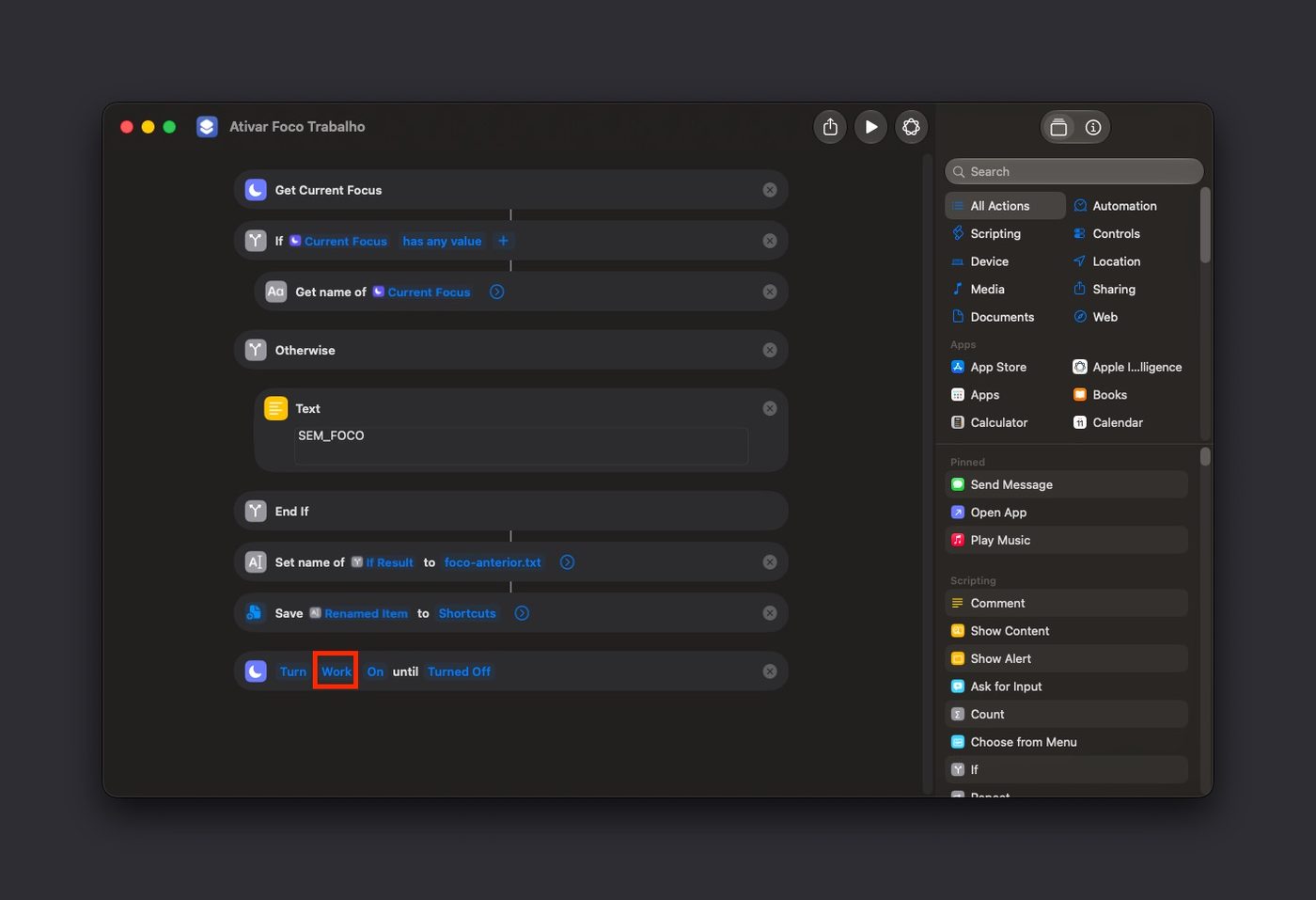
6. Open each shortcut and check the Set Focus action at the end. In “Ativar” (turn on), it should be set to Work, turning on. If the field is empty (common when the Focus was created after the shortcut), tap it and pick Work again.
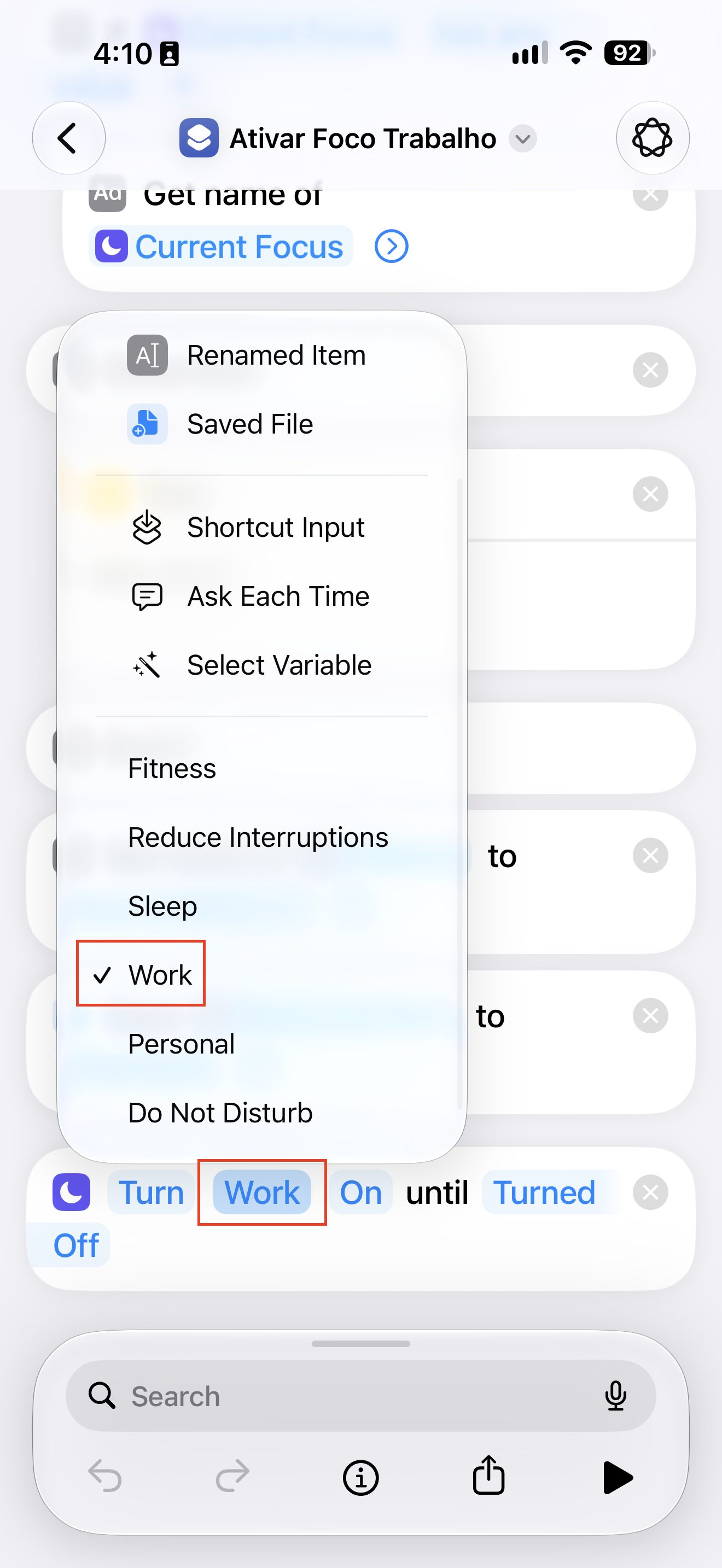
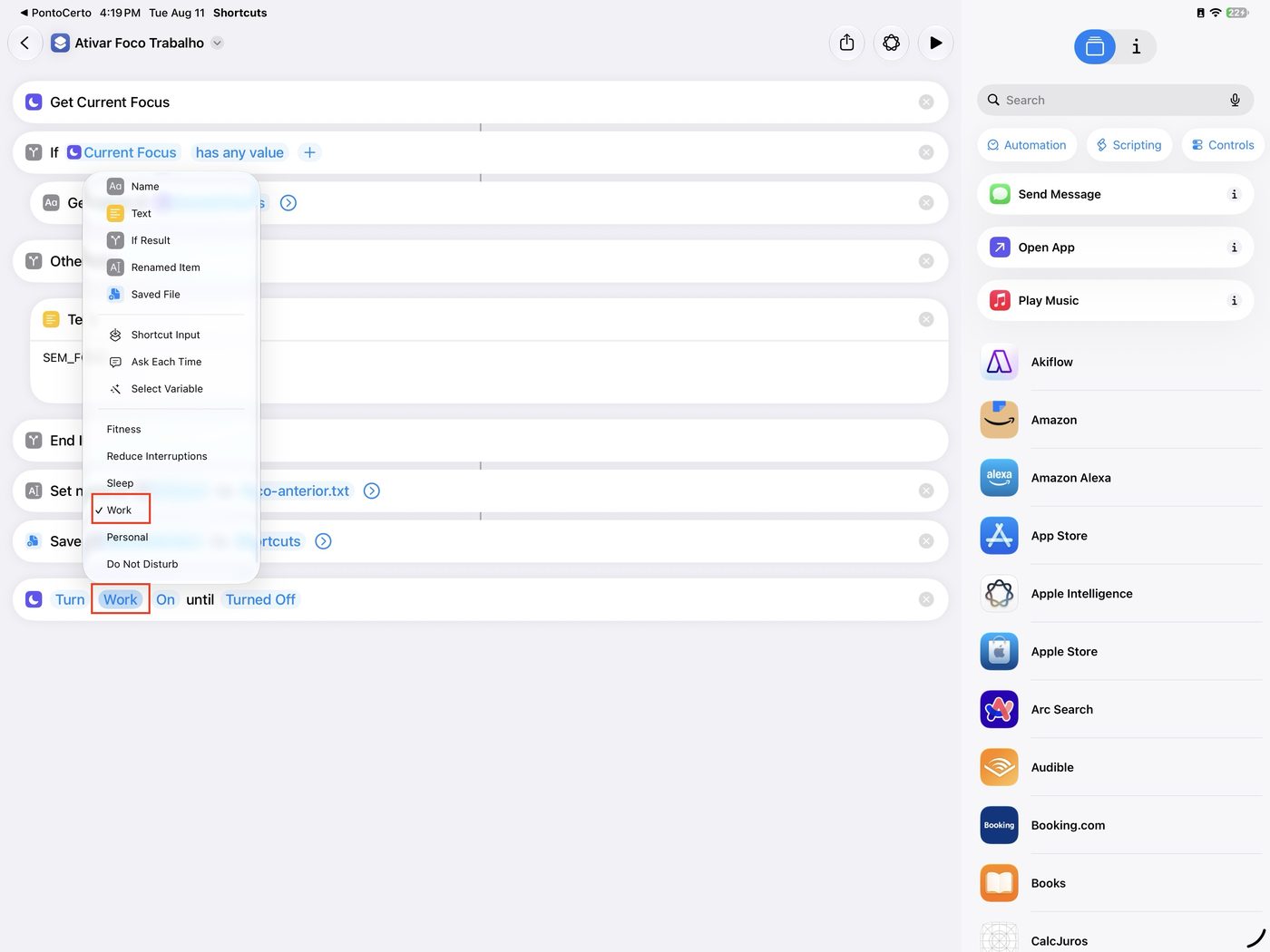
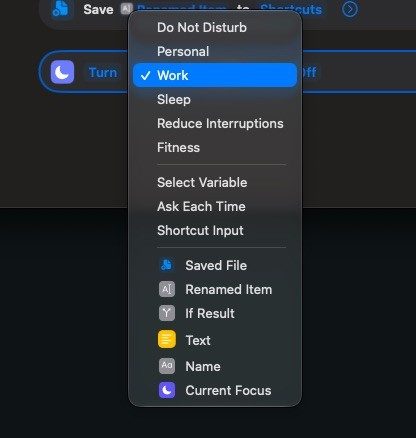
In “Desativar” (turn off), there are two Set Focus actions: the first turns Work off (check it the same way as above), and the second uses a variable to restore the previous Focus — leave that one alone.
This is just a 15-second check, not a fix — it takes less time than reading this paragraph.
Part 4 — Test it
7. Run the “Ativar Foco Trabalho” shortcut manually once, straight from the Shortcuts app. This creates the file that remembers the previous Focus and triggers the permission prompts — without this step, “Desativar” fails the first time it runs.
8. Log a clock-in in PontoCerto. The Shortcuts app should flash on screen for a moment and bring you back to PontoCerto by itself.
Multiple devices
With “Share Across Devices” turned on in Settings > Focus, the Work Focus follows all your devices automatically, and the Shortcuts sync through iCloud. Set it up on one device and it’s set up on the others — just turn the toggle on in PontoCerto on each one.
Common issues
| Symptom | Likely cause | Fix |
|---|---|---|
| I confirm a clock-in and Shortcuts doesn’t even open | The integration is turned off | Settings > Focus → turn the toggle on |
| Shortcuts says the shortcut doesn’t exist | The name doesn’t match exactly | Rename it to the exact name — check for a numeric suffix or an accidental rename |
| It runs, but the Focus doesn’t change | You created a custom Focus named “Trabalho” | Use the system-suggested Work Focus instead; delete the custom one |
| I get stuck in the Shortcuts app, PontoCerto doesn’t come back | The shortcut failed partway through | Run it manually to see where it errors — see the two rows below |
| “Desativar” fails the first time | The file that remembers the previous Focus doesn’t exist yet | Run “Ativar” manually once (Part 4) |
| Both shortcuts fail at a file step | iCloud Drive is off or missing permission | Turn on iCloud Drive and accept access to the Shortcuts folder |
| Turning off restores an odd Focus | The restore step uses the previous Focus’s name | Expected behavior; turn it off manually from Control Center |
| Works on iPhone, not on Mac | Shortcuts or Focus haven’t synced | Turn on “Share Across Devices” and check Shortcuts on the Mac |
| Two “Work” Focuses show up in the list | The built-in one plus an old custom one | Delete the custom one |
Turning it off
Settings > Focus → turn off the Enable/disable Focus toggle. If you want, you can also delete both shortcuts in the Shortcuts app — PontoCerto will simply stop trying to call them.